Sabentis Lean gets a refresh for safety teams in the field
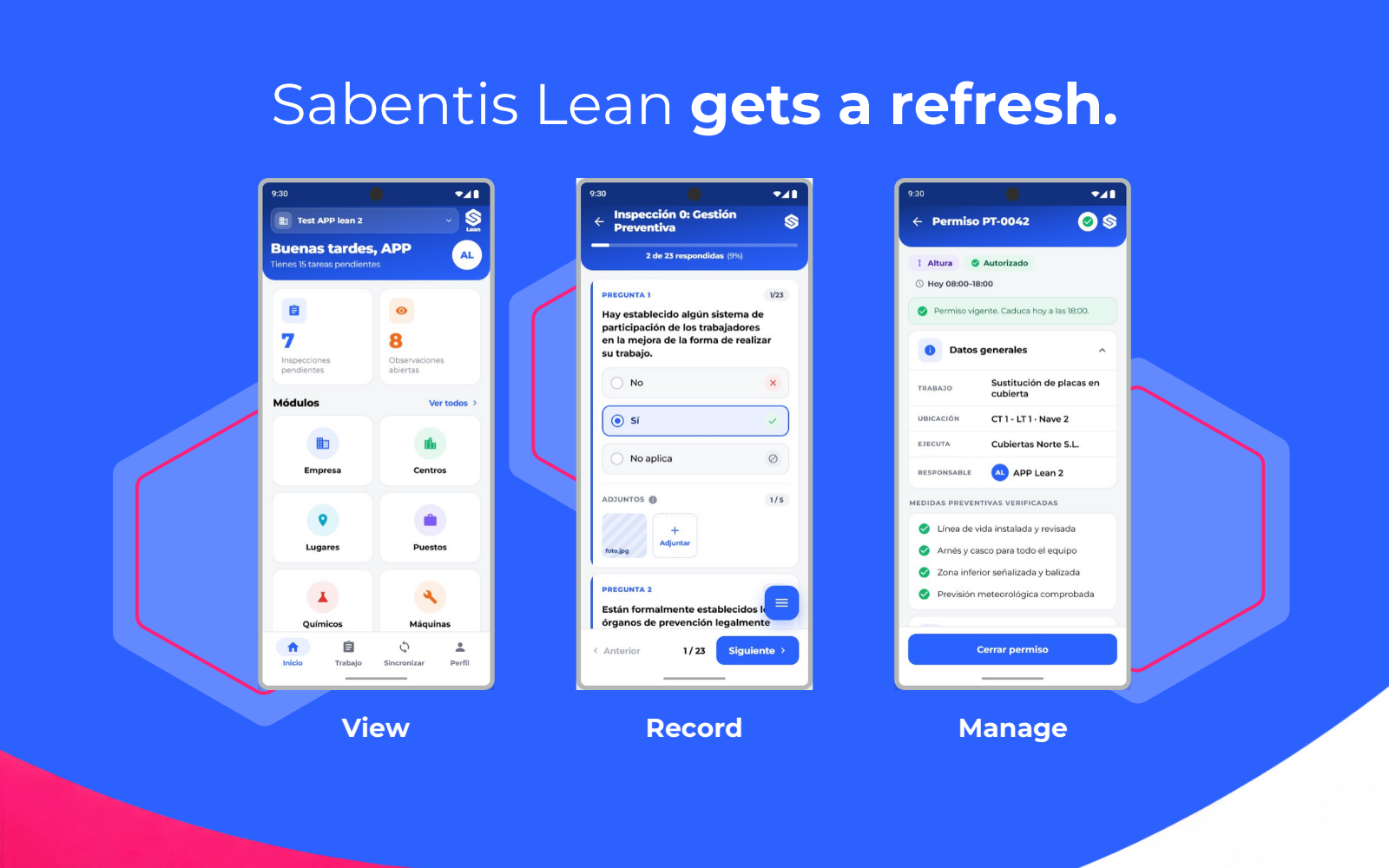
The Sabentis field app has a refreshed design and a new module for managing permits to work on mobile. With Sabentis Lean, safety teams can prepare site visits, carry out inspections, record observations and sync their work with the platform once they’re back online.
On a factory floor, construction site or in a plant room, you need the right checklist and a clear record of what you checked and where. If you lose your connection halfway through a visit, you can continue with the data you downloaded in advance.
What’s changed in Sabentis Lean?
The refreshed interface makes it easier to find your way around the app. The header shows the company and screen you’re working in, which helps if you have access to several company accounts. From the home screen, you can see pending inspections and open observations. A welcome tour shows you how the app is organised and how to prepare for work without a connection.
The main addition is the permit-to-work module, alongside safety inspections, statutory checks, observations and access to risk notices.
Prepare for your visit
While you’re online, open the sync screen and import your data. This downloads the questionnaires, assigned records and information about sites and work locations available to your role. Before you set off, check that the right company is selected and locate the tasks you plan to complete.
Use the same device you’ll take on site to check that everything you need is available. Our blog explains how to test an inspection app with poor coverage and during synchronisation.
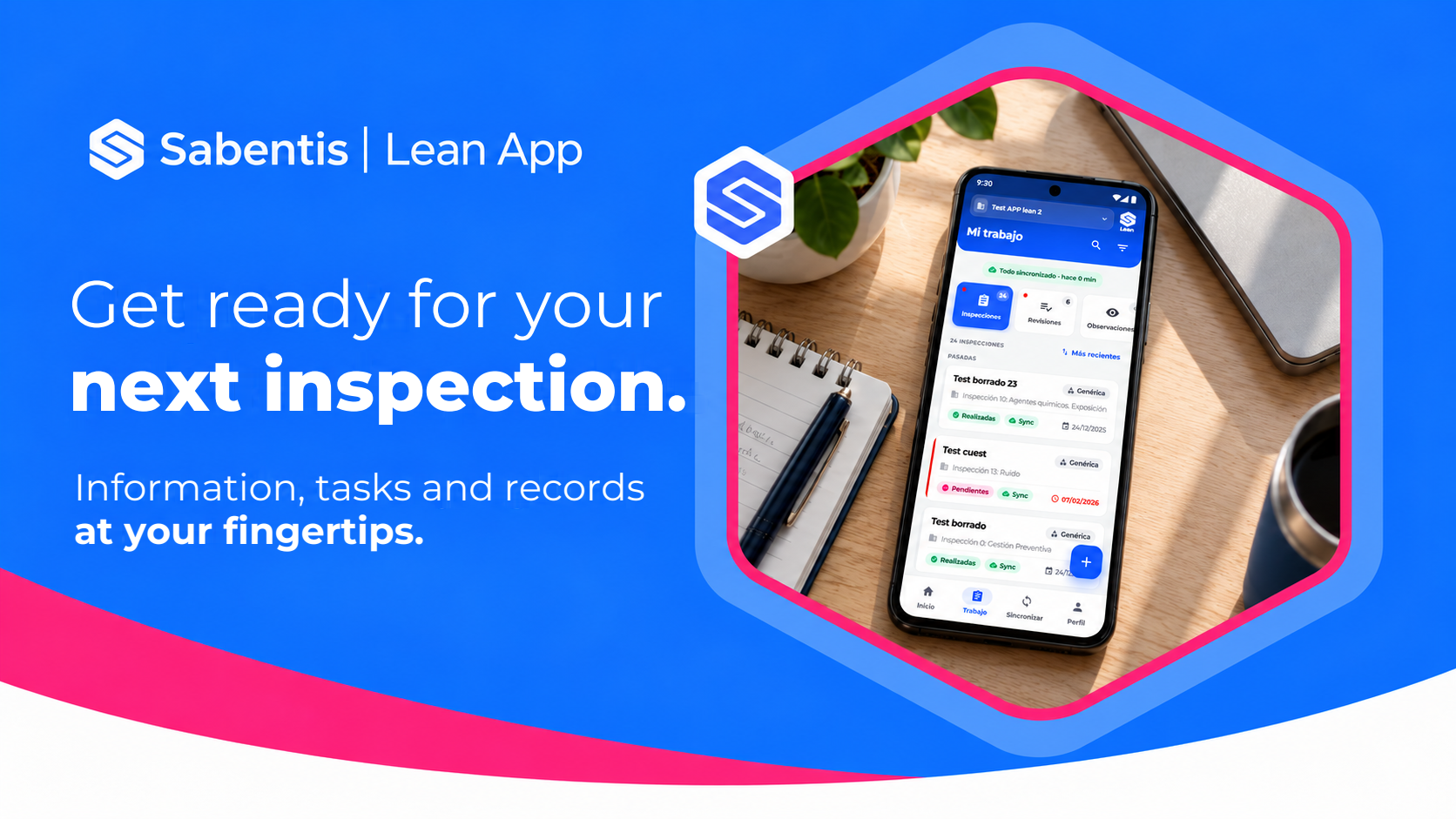
Carry out inspections and record observations
On site, you can complete inspection or review questionnaires, save a draft if you’re interrupted and attach photographs or files where appropriate. You can also record observations and related non-conformities. A photo is easier to interpret when the record identifies the location, equipment and condition observed. See our guide to digital safety inspections.
If you’re trying to understand how a task is carried out, speak to the people doing it. Their account adds context to what you record. Read more about preventive safety observations.
Manage permits to work on mobile
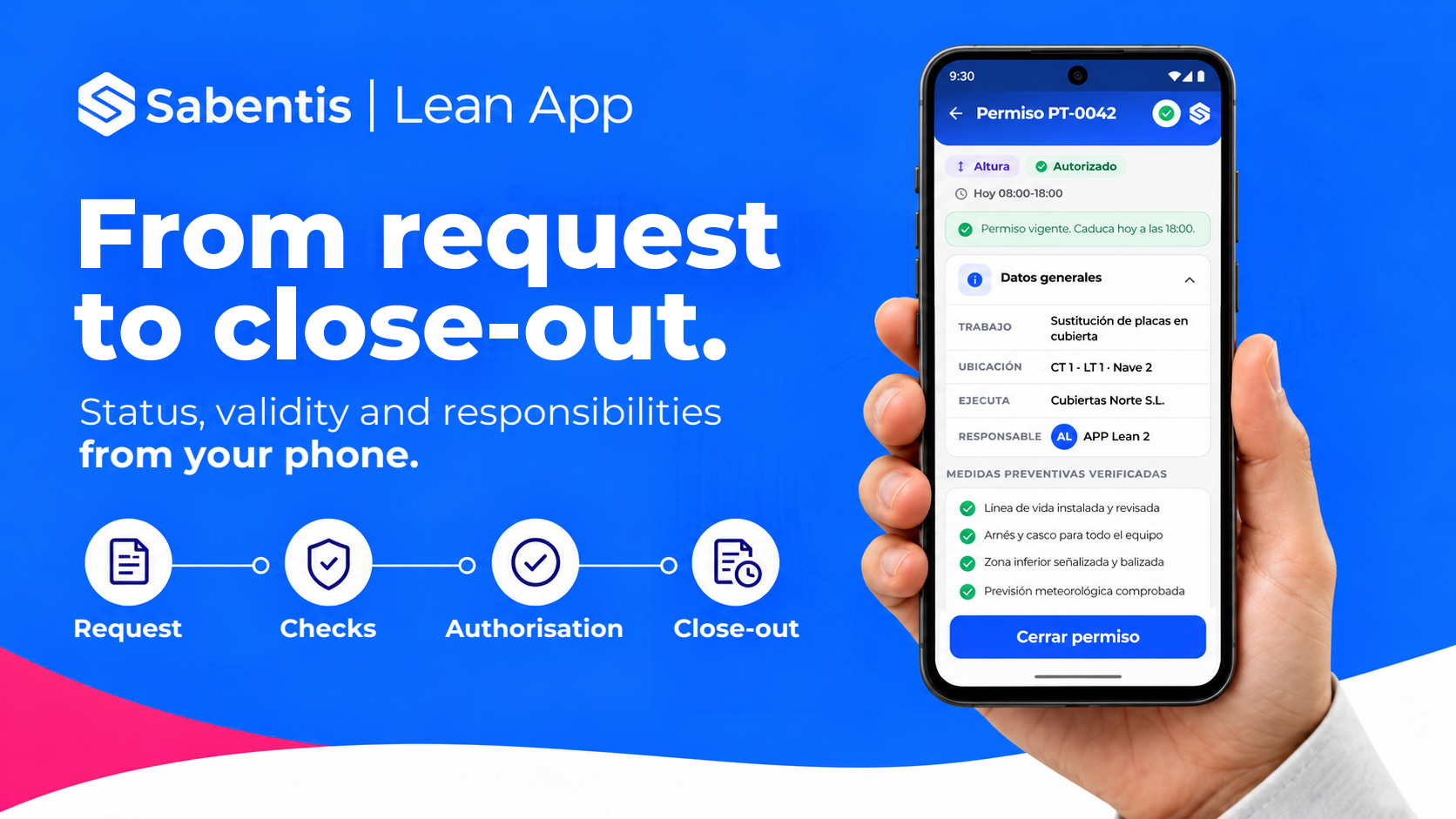
Depending on your role and your organisation’s settings, you can request, view, authorise or close permits for work at height, hot work, electrical work and work in confined spaces.
The permit shows the planned work, its location, the checks recorded, who is responsible, how long it is valid and its approval history. Before the job begins, the responsible person should check the conditions on site and confirm that the permit is authorised and still valid. The person assigned to close it can record that step in the app when the job is complete. Learn more about digital permit-to-work management.
An inspection in an area without coverage
Imagine a safety adviser is inspecting a basement plant room. Before heading downstairs, she imports the data while connected. On her walk-through, she finds stored materials partially blocking a pedestrian route. She records the location and what she observed, attaches a photo showing the whole walkway and reports the issue using the site’s procedure.
When she’s back online, she exports the inspection. The team reviewing it on the web platform can find the affected area, see the photo and decide whether further action is needed.
Sync when you’re back online
Open the sync screen, export your data and check the status of the records and attachments. If a record is marked as stored locally, it is still waiting to be sent. Once the data has been synced, the team responsible for follow-up can review what was documented on site. This continuity is part of traceability in occupational safety and health.
A checklist for your next visit
- Check that the right company is selected and find the task you plan to carry out.
- Import the data while connected, before entering an area with poor coverage.
- Record enough detail for someone else to locate and understand what you observed.
- If the job requires a permit, check its status and validity before work begins.
- Once you’re back online, export your records and check whether anything is still waiting to be sent.
Frequently asked questions
Who can use Sabentis Lean?
Anyone whose organisation has enabled their account in Sabentis. The features available depend on the person’s role and the company’s settings.
When do I need an internet connection?
You’ll need a connection to sign in for the first time, import data and export your records. Once you’ve downloaded what you need, you can complete field tasks such as an inspection and keep the record on your device until you’re back online.
Where can I find the welcome tour again?
Open the help and support section of your profile and select the option explaining how the app works. To request the full user guide, use the Sabentis Help Center to contact support.
Download or update Sabentis Lean
If your organisation already uses Sabentis, download or update the app before your next visit.
Sabentis Lean. Your safety work, on site.